
Ores and Forging
How to Forge Weapons and Armor
Last updated:
Learn how to use the Forge in +1 Loot To Forge, meet the four-ore minimum, read category chances, and equip the weapon or armor you make.
Carry at least four ores, use E Forge, choose Weapon or Armor, and select up to four ore types. Check the Preview, press Forge, then open Backpack to inspect the result and select Equip.

The main plaza Forge turns collected ores into weapons or armor. Before committing them, you can check the equipment category chances and the displayed Multiplier.
Open the Forge and add ores
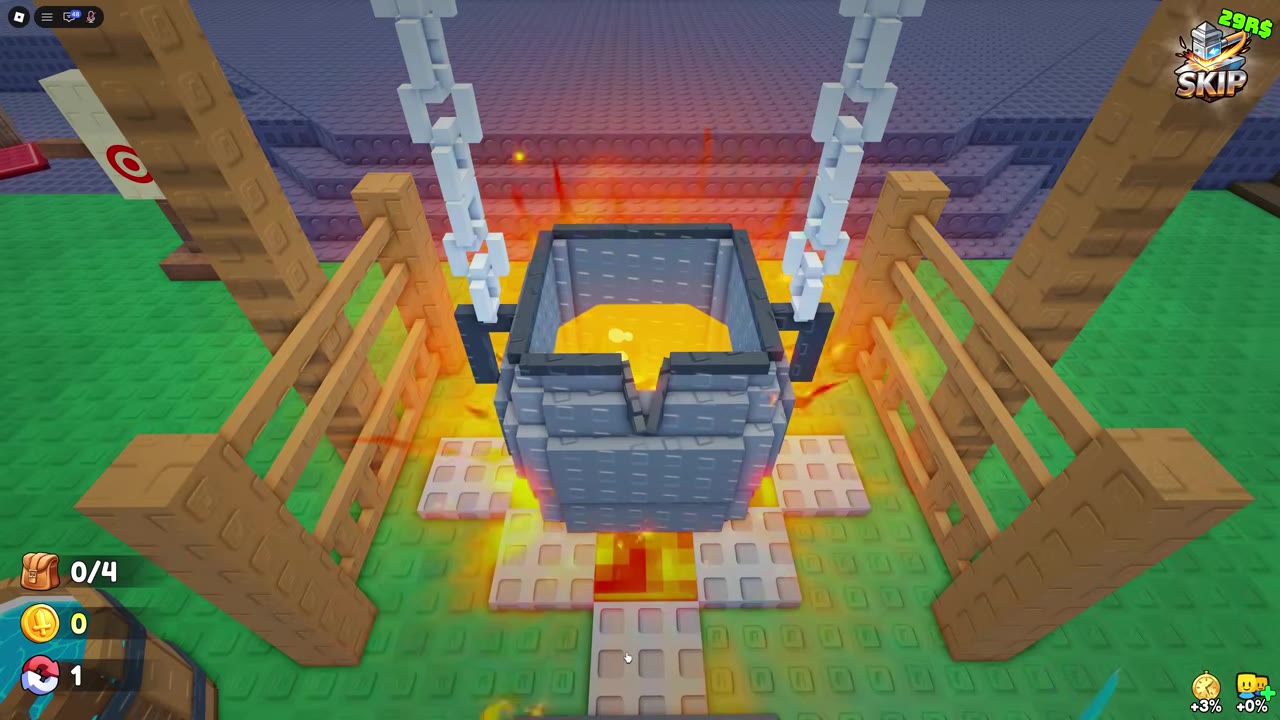
- Follow the plaza guide to the Forge and use the E Forge prompt.
- Select Weapon or Armor. Your available ores appear on the right.
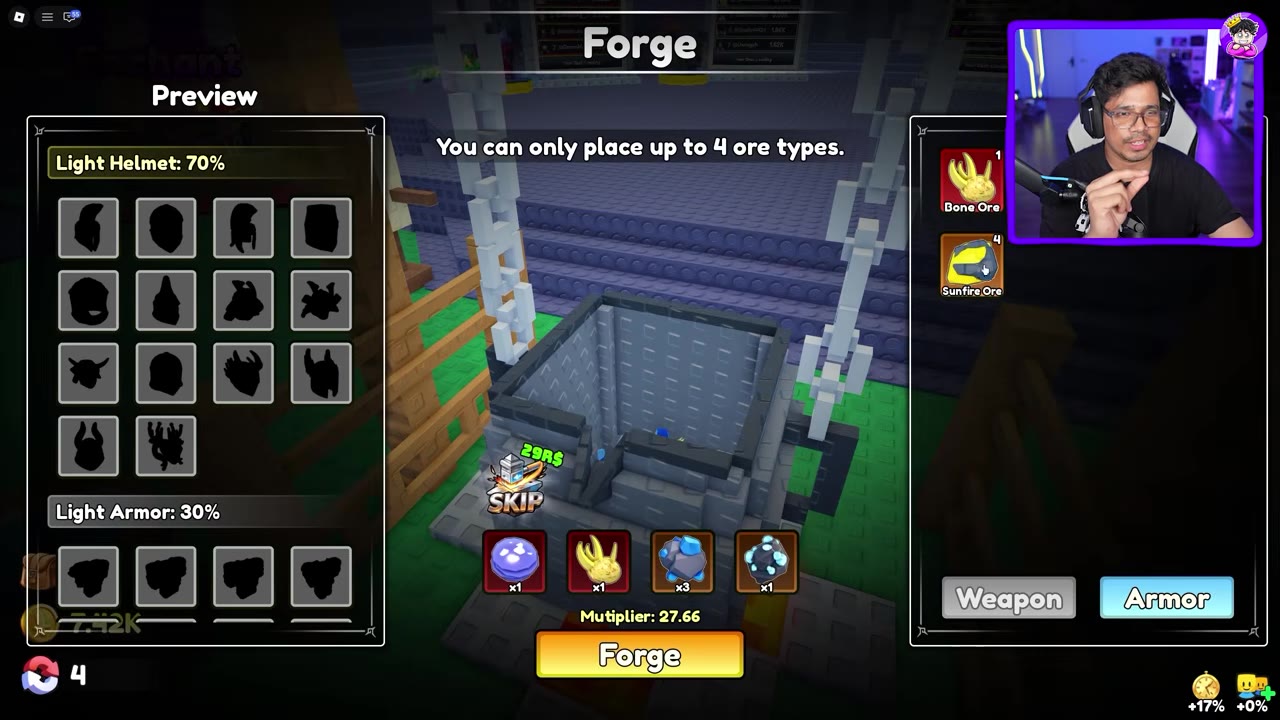
- Select ores and check their quantities in the material slots along the bottom. You can change the selection before pressing Forge.
If you need materials, see Ores and How to Collect Them.
Meet the ore count and type limits
| Limit | Per forge attempt | Effect |
|---|---|---|
| Ore pieces | At least 4 | The Forge button stays inactive with fewer than four pieces. |
| Distinct ore types | At most 4 | Each type uses one material slot; extra pieces of that type stack in the same slot. |
For example, Fire Crystal ×2 and Nova Ore ×2 provide four pieces while using two slots. Changing a type or its quantity can change both the category chances and the displayed Multiplier. More ore does not always raise the Multiplier, so check it after each adjustment.
Read the category preview before forging
Weapon previews show Katana and Greatsword. Armor previews show Light Helmet, Heavy Helmet, Light Armor, and Heavy Armor. Scroll the Preview list to check categories farther down. Switching between Weapon and Armor before forging can keep the selected ores in place while changing the categories shown.
| Example preview | What it means |
|---|---|
| Katana 100% | The result will be in the Katana category; the specific weapon is revealed after forging. |
| Light Armor 80%, Heavy Helmet 20% | Either category can result. A helmet remains possible even when armor has the higher chance. |
The silhouettes are preview entries, not items already obtained. The Multiplier is a separate value for the current ore selection; compare it and the category percentages after each change.
In Weapon mode, these two ore selections show how changing a quantity can change the preview:
| Ore selection | Category preview | Displayed Multiplier |
|---|---|---|
| Panic-Core ×1, Bussin-Ice ×1, Magmacore ×1, Rust-Sludge ×1 | Katana 100% | 110.75 |
| Panic-Core ×10, Bussin-Ice ×1, Magmacore ×1, Rust-Sludge ×1 | Greatsword 100% | 122.69 |
Only the Panic-Core quantity changes between these selections. Check the updated category chance and Multiplier before forging; neither selection guarantees a named weapon.
Forge, inspect, and equip the result
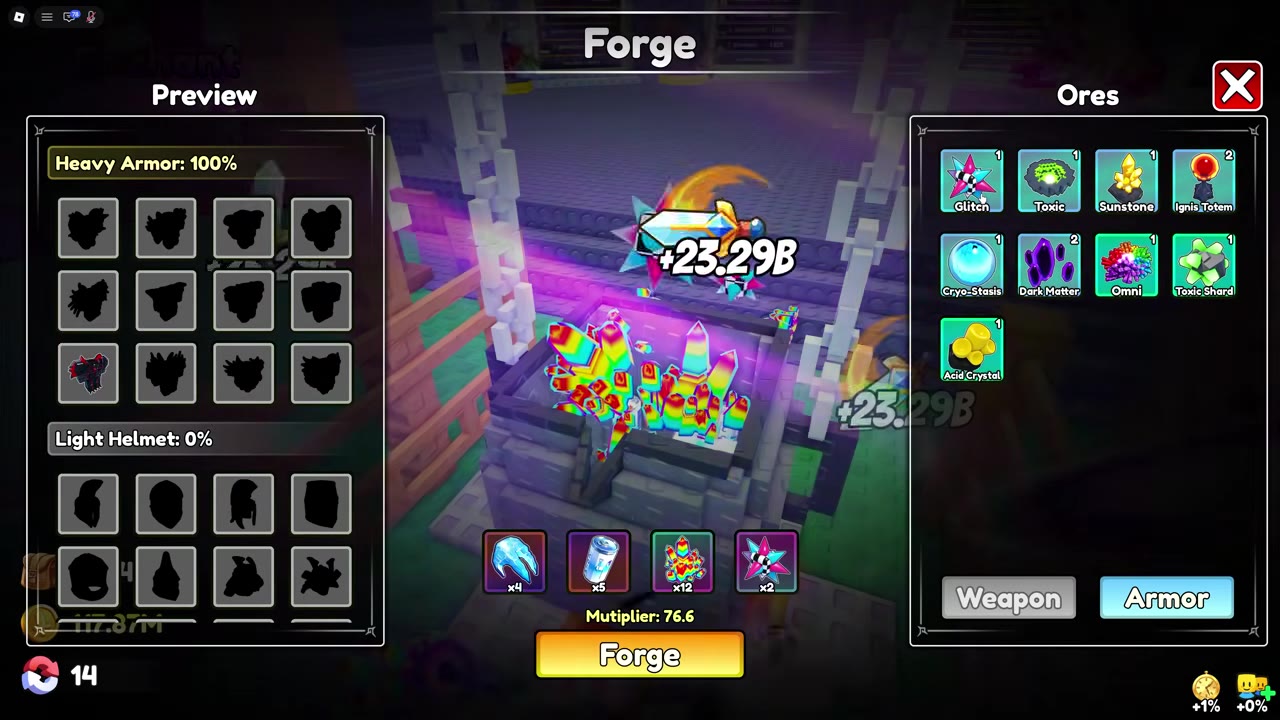
- When the selection is ready and Forge is active, press it.
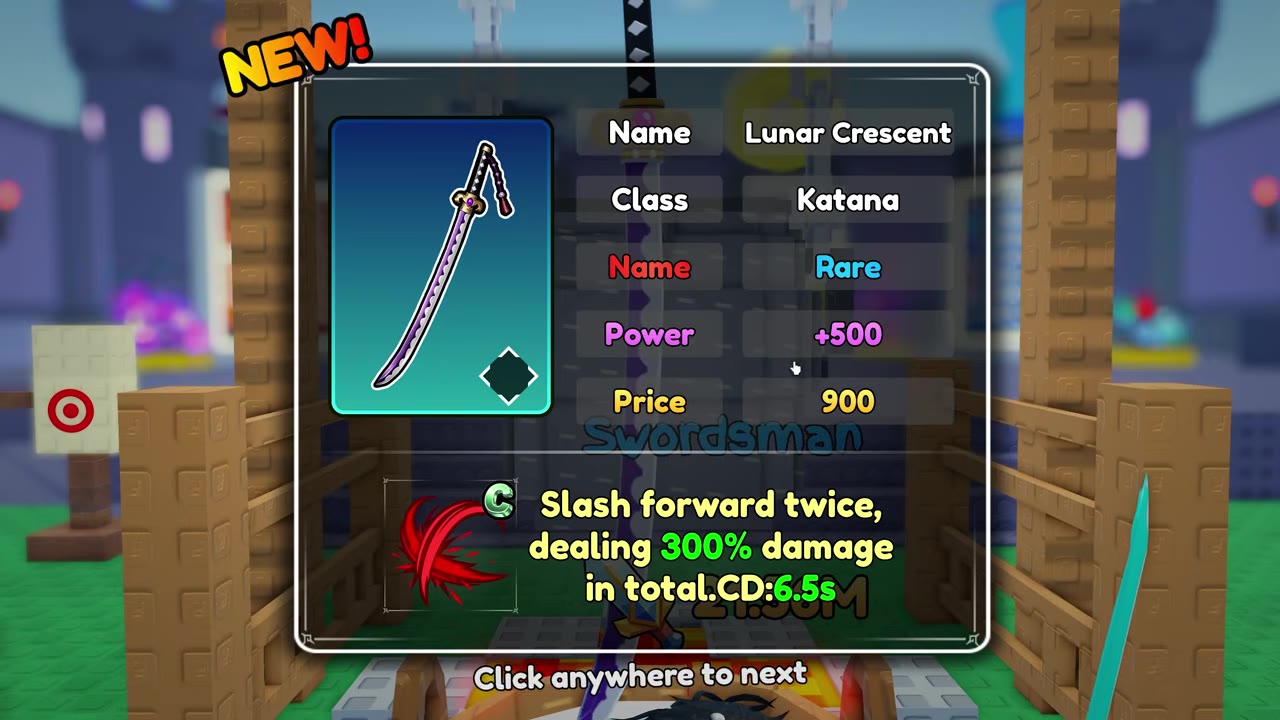
- Read the result card to identify the specific item, then follow its prompt to continue. Price on the card is the item's listed value, not an additional forging cost.
- Open Backpack and inspect the new item. Select Equip separately if you want to wield or wear it; forging alone does not replace your equipped item.
Use Weapons, Power, and Skills to compare weapons, or Helmets, Armor, and Equipment Sets to compare protective gear. The Skip Forge Animation game pass can skip the animation; its details are listed under Shop Boosts, Potions, and Bundles.
 Select ores, forge a weapon, and equip it